
Inviting Users & Setting Permissions
AVAG lets you add unlimited users to your account. Manage your team from one place, controlling which data each person can access and what they can do.
Click User management in the left sidebar under TEAM.
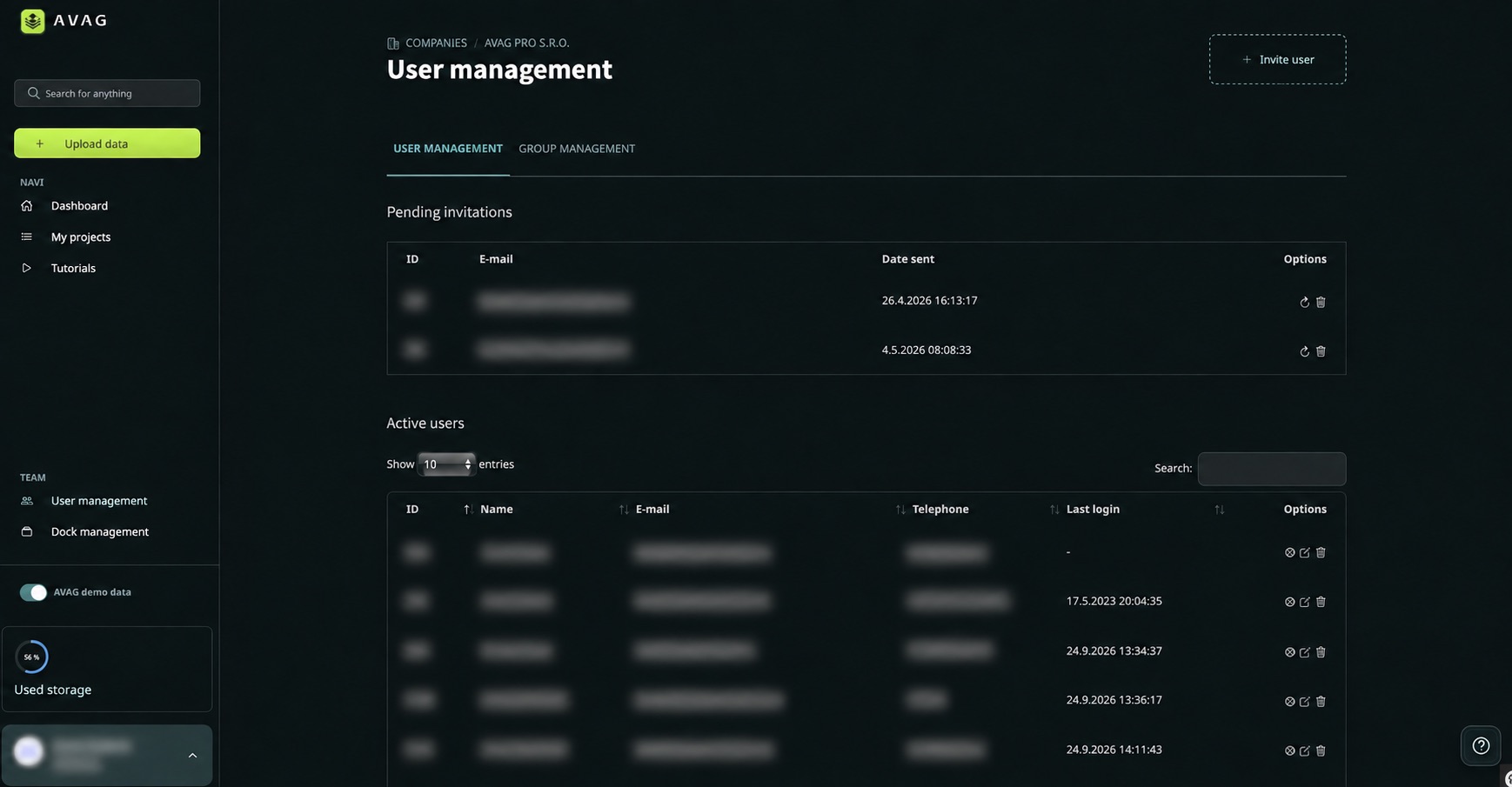
Inviting a new user
Section titled “Inviting a new user”Click + Invite user in the top-right corner to open the Invite a new user dialog.
Email addresses (separated by comma) – Enter one or more email addresses, separated by commas, to invite multiple people at once.
Role – Choose one of three roles:
- AVAG Guest – Can view assigned data only. Cannot upload or delete data, or create projects, objects, or layers. Suitable for clients, stakeholders, and anyone who needs to review results.
- AVAG User – Can view and delete assigned data, upload new data, and create projects, objects, and layers. Suitable for team members who collect and manage data.
- AVAG Admin – Has the same permissions as AVAG User, plus access to User management. Suitable for team leaders and account administrators.
Language – Set the invited user’s interface language. They can change it later in their own account settings.
Authenticator – Choose how the user signs in: Any (email/password or social login), Microsoft, Google, or Facebook. Selecting an SSO (single sign-on) provider disables username and password login for that user.
Automatically give access to all new datasets – Give the user automatic access to every new dataset added across the account, including datasets in objects they did not previously have access to.
Give access to all existing projects and datasets – Give the user access to all projects and datasets already in the account. Leave this unchecked to assign access selectively.
Show demo data in the dashboard – Make AVAG’s example datasets visible in the user’s dashboard while they explore the platform.
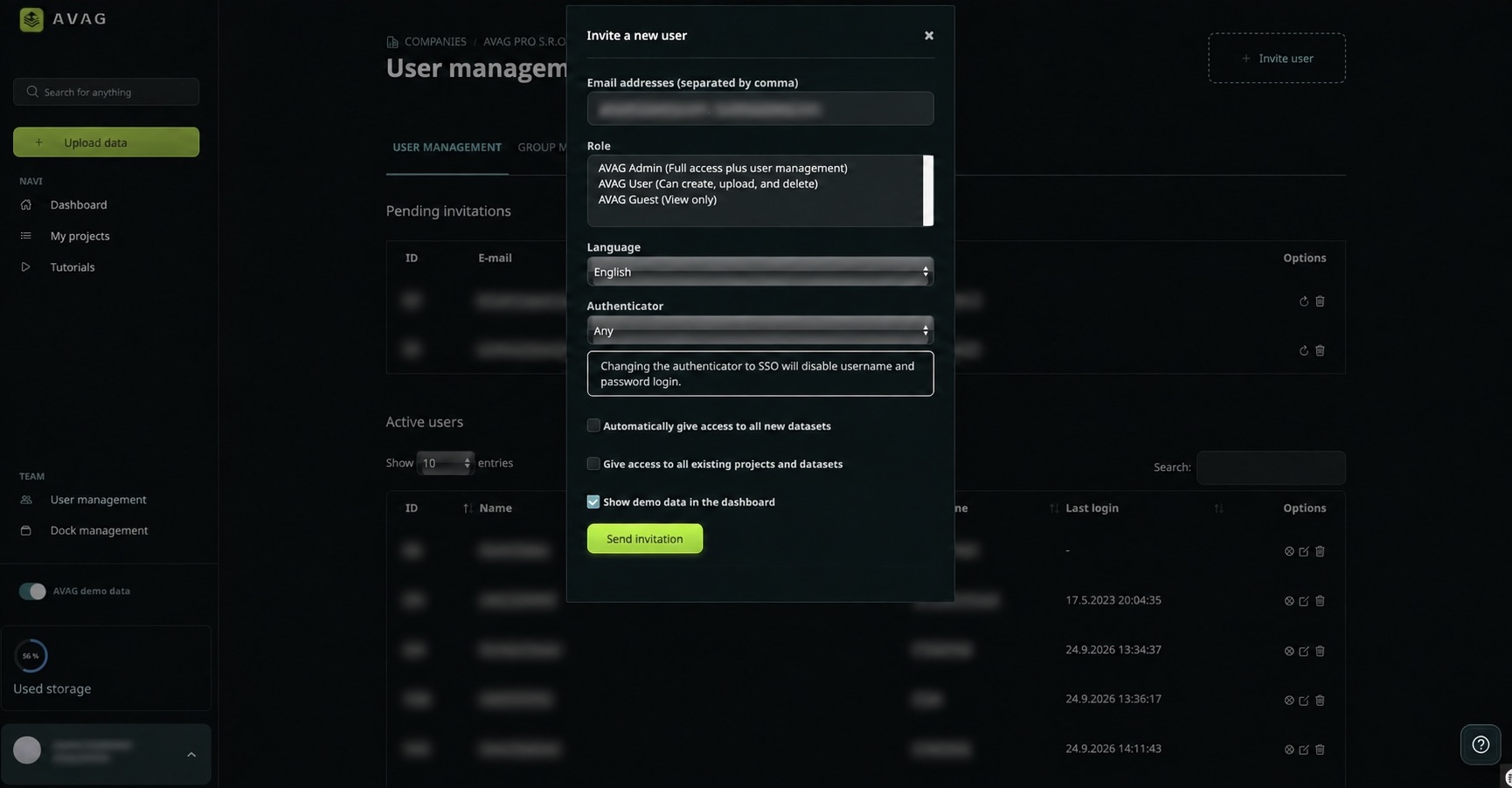
Click Send invitation. The user will receive an email invitation and appear under Pending invitations until they accept.
Managing active users
Section titled “Managing active users”Once a user accepts their invitation, they appear in the Active users table. The table shows each user’s ID, name, email address, telephone number, and last login.
Use the Search field to find a user. Use the icons in the Options column to edit their settings, share access, or remove them from the account.
Group Management
Section titled “Group Management”The Group Management tab lets you organize users into groups, for example, by team, project, or location.
Click + New Group, give it a name and optional description, select which users to include, and choose whether new layers should be automatically assigned to the group.
Groups make it easy to manage permissions at scale without having to configure each user individually.