Importing data in AVAG
AVAG supports a wide range of data types, covering everything from raw drone photos to pre-processed outputs, 360° tours, and design files. All imports start the same way – click + New dataset in the left sidebar and select the appropriate product type.
Photogrammetric Images (JPG)
Section titled “Photogrammetric Images (JPG)”This is the most common import type. Upload your raw drone photos in JPG or JPEG format and AVAG will process them into a full dataset including an orthophoto, DSM, slope model, and point cloud.
With GPS in EXIF – AVAG reads the coordinate system automatically from your photos’ EXIF data. Select your WMS Region when creating the dataset, leave the No GCPs checkbox checked, and upload your photos. Processing is free and fully automated.
With GCPs – Uncheck the No GCPs box when creating the dataset, then upload your photos together with your GCP file (.txt) in the upload screen. This triggers Expert processing. Make sure you have credits available before submitting (99€ per 500-photo dataset).
Note: The WMS Region must always be selected when creating a new dataset, regardless of whether your photos have GPS coordinates or not.
Processed outputs (GeoTIFF, LAS/LAZ)
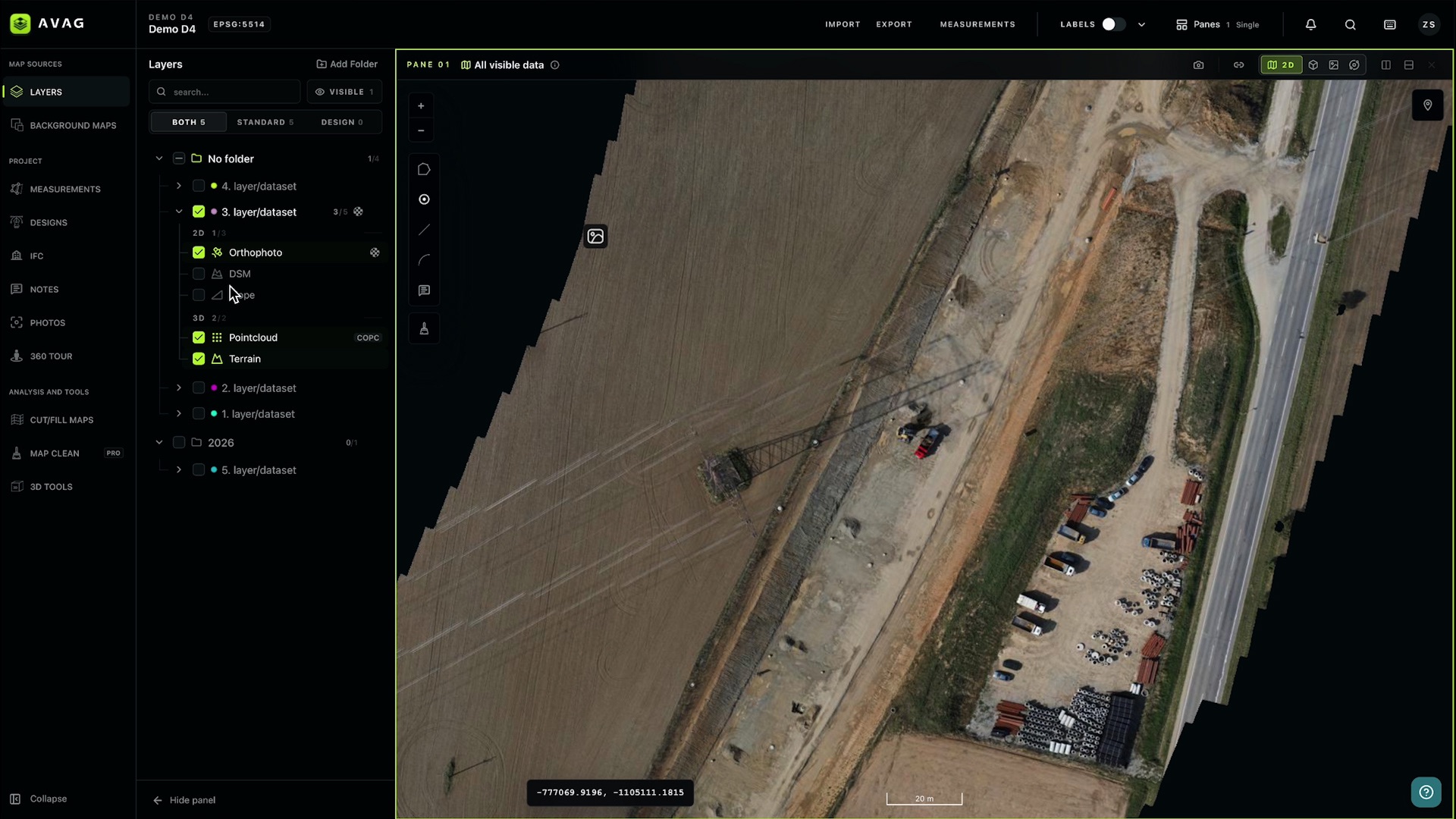
Section titled “Processed outputs (GeoTIFF, LAS/LAZ)”If you already have processed outputs from another photogrammetry software such as Agisoft Metashape, Pix4D, or DJI Terra, you can import them directly into AVAG without reprocessing. Select Import GeoTIFF (ORTHO, DSM), LAS (POINTCLOUD) as the product type.
Each dataset can include any combination of the following file types, uploaded into their respective drop zones:
- DSM – Digital Surface Model (.tif / .tiff)
- Orthophoto – georeferenced aerial image (.tif / .tiff)
- Point Cloud – 3D point cloud data (.las / .laz)
- Mesh – 3D mesh model (.zip containing .obj, .mtl, .jpg)
You don’t need to upload all four, import only the outputs you have. Once uploaded, click Process Data to add the data to your map as a new layer.
360° panoramic photos
Section titled “360° panoramic photos”Import pre-stitched 360° panoramic images to create an interactive ground-level tour linked to your map. Select Import 360° Tour (JPG and Metadata) as the product type.
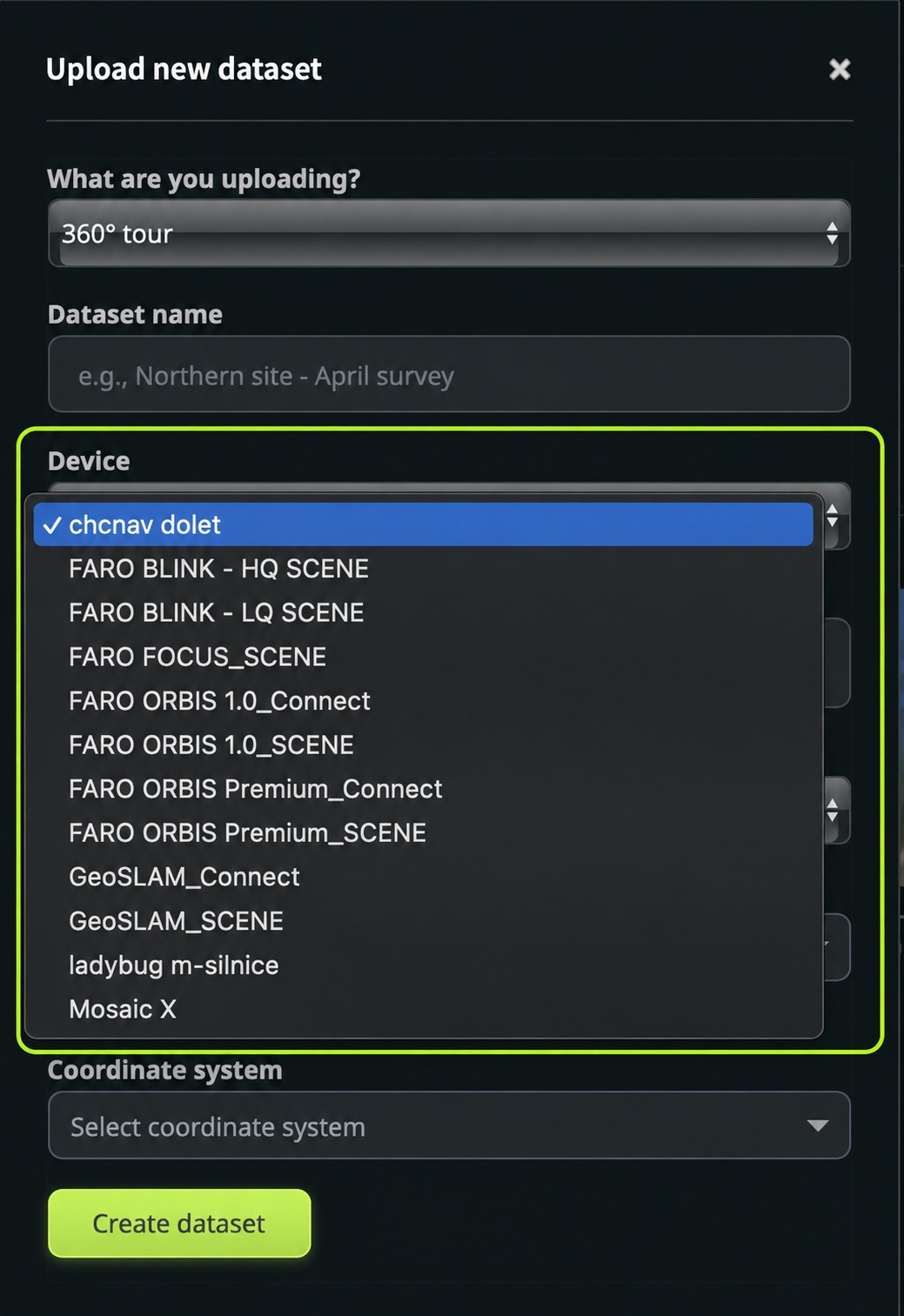
When creating the dataset, select your camera device from the supported device list. Currently supported devices include:
- CHC RS10
- FARO BLINK_SCENE
- FARO FOCUS_SCENE
- FARO ORBIS 1.0 (Connect & Scene)
- FARO ORBIS Premium (Connect & Scene)
- Flir Ladybug 5+ (RiPROCESS)
- GeoSLAM (Connect & Scene)
- Mosaic X
On the upload screen, add both your photos (.jpg / .jpeg) and a metadata file (.txt, .csv, or similar) containing the following fields for each image: GPSTime, ImageFileName, X, Y, Z, Roll, Pitch, Heading. The number of photos must match the number of rows in the metadata file.
Once uploaded, click Process data to submit.
CAD overlays & design files (XML / LandXML)
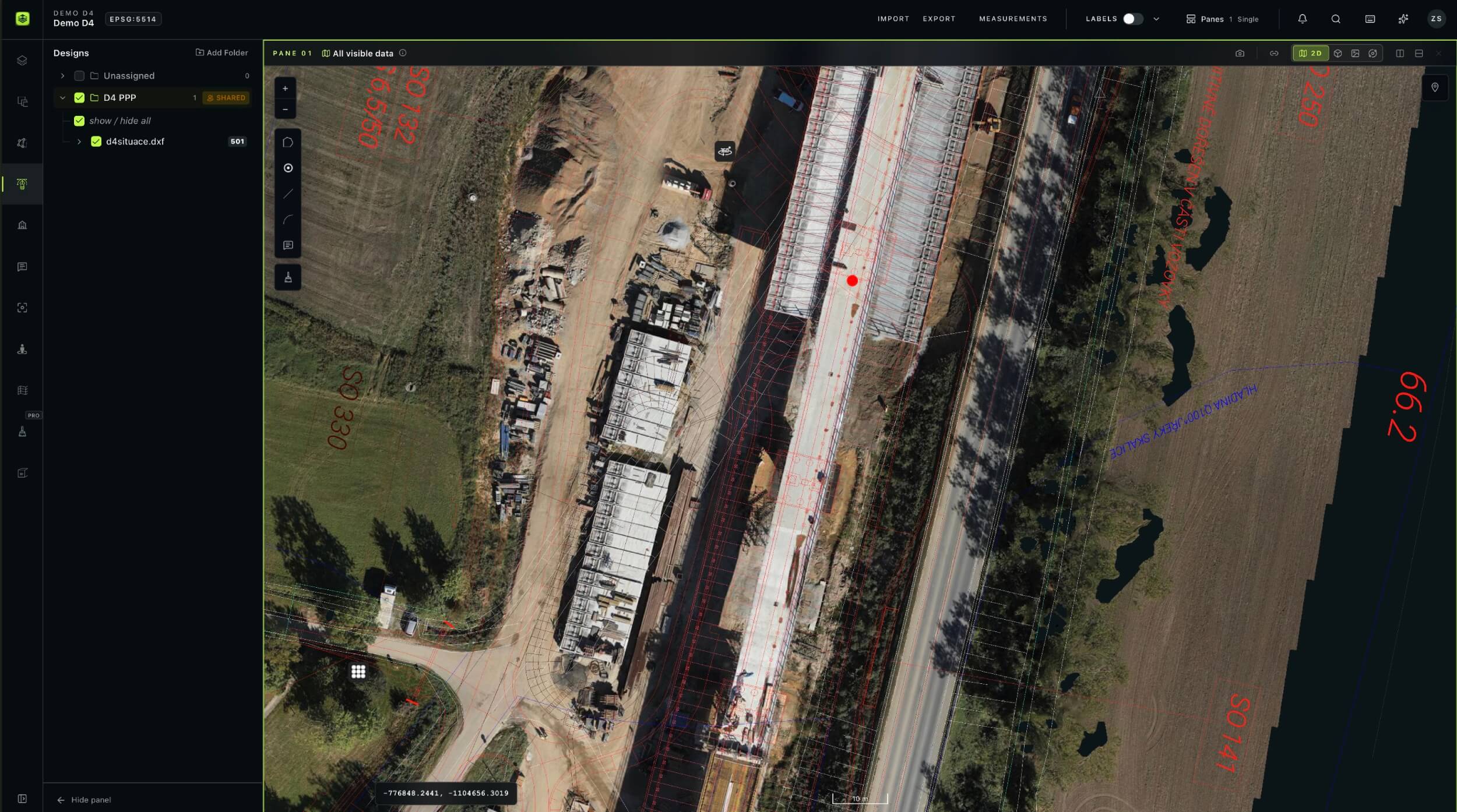
Section titled “CAD overlays & design files (XML / LandXML)”Import 3D design surfaces in LandXML format to overlay construction designs directly on your survey data. Select XML as the product type.
Upload a single .xml design file. The following requirements must be met:
- The file must use the correct coordinate reference system matching your project
- The surface must be triangulated
- The file must be saved in LandXML format
Once processed, the design surface appears as a layer on your map and can be used for cut/fill analysis, volume calculations between design and survey, and terrain profile comparisons.
Direct in-app imports (Top toolbar menu)
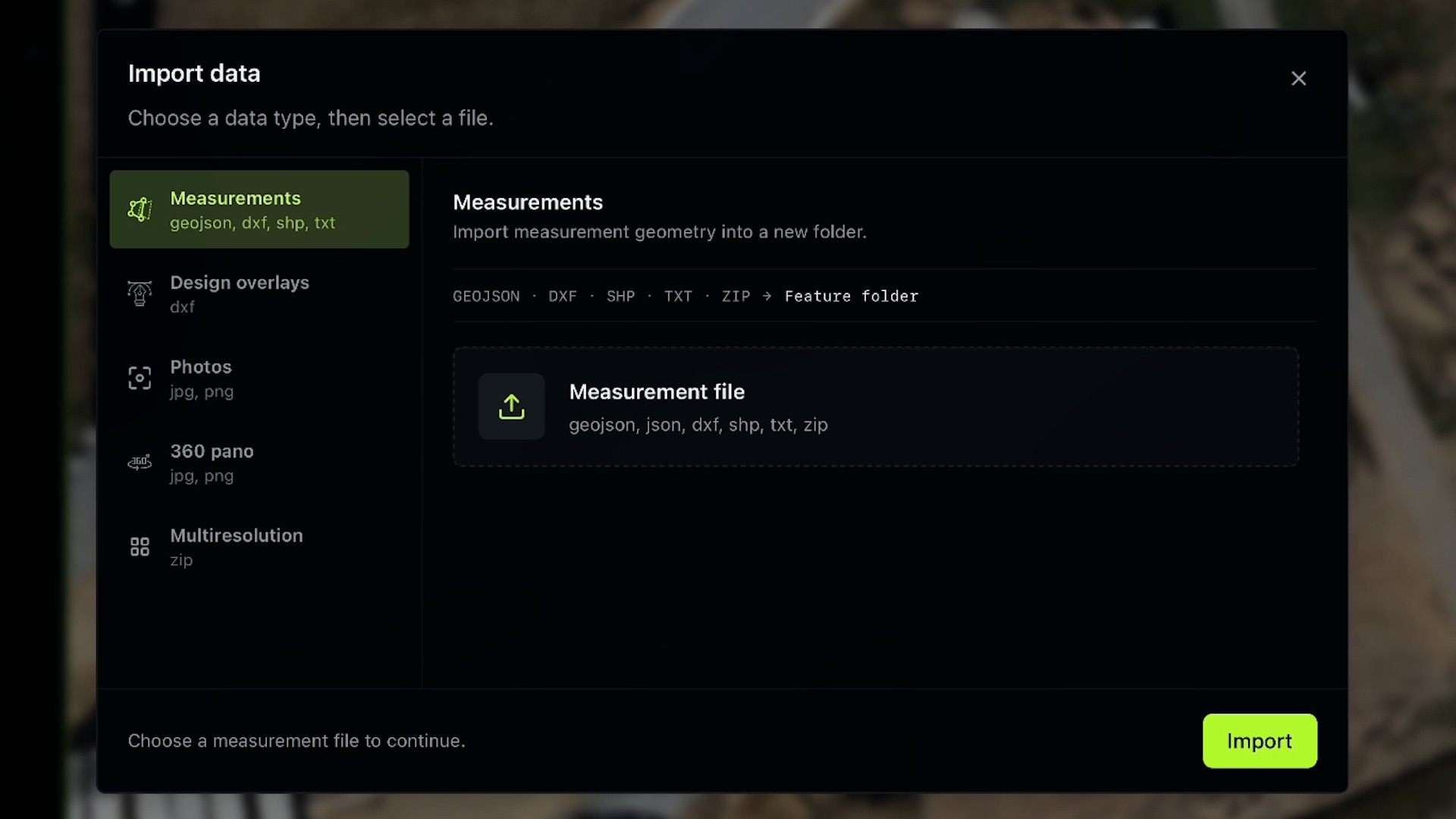
Section titled “Direct in-app imports (Top toolbar menu)”For rapid imports inside the AVAG platform, you can use the IMPORT dropdown menu located in the top toolbar. This menu includes 4 main types of auxiliary files:
- Measurements (
geojson,dxf,shapefile (.zip),txt) – Import vector data, geometric shapes, boundary lines, or text annotations to measure and display directly on your map. - Design overlays (
dxf) – Bring in CAD design files in DXF format to overlay architectural or engineering plans straight onto your survey data. - Photos (
jpg) – Upload individual or supplementary JPEG images into your workspace. - 360 pano (
jpg) – Add standalone 360° panoramic pictures for localized ground-level viewing. - Multiresolution (
zip) – Import pre-packaged multiresolution raster data or imagery layers compressed inside a ZIP folder.