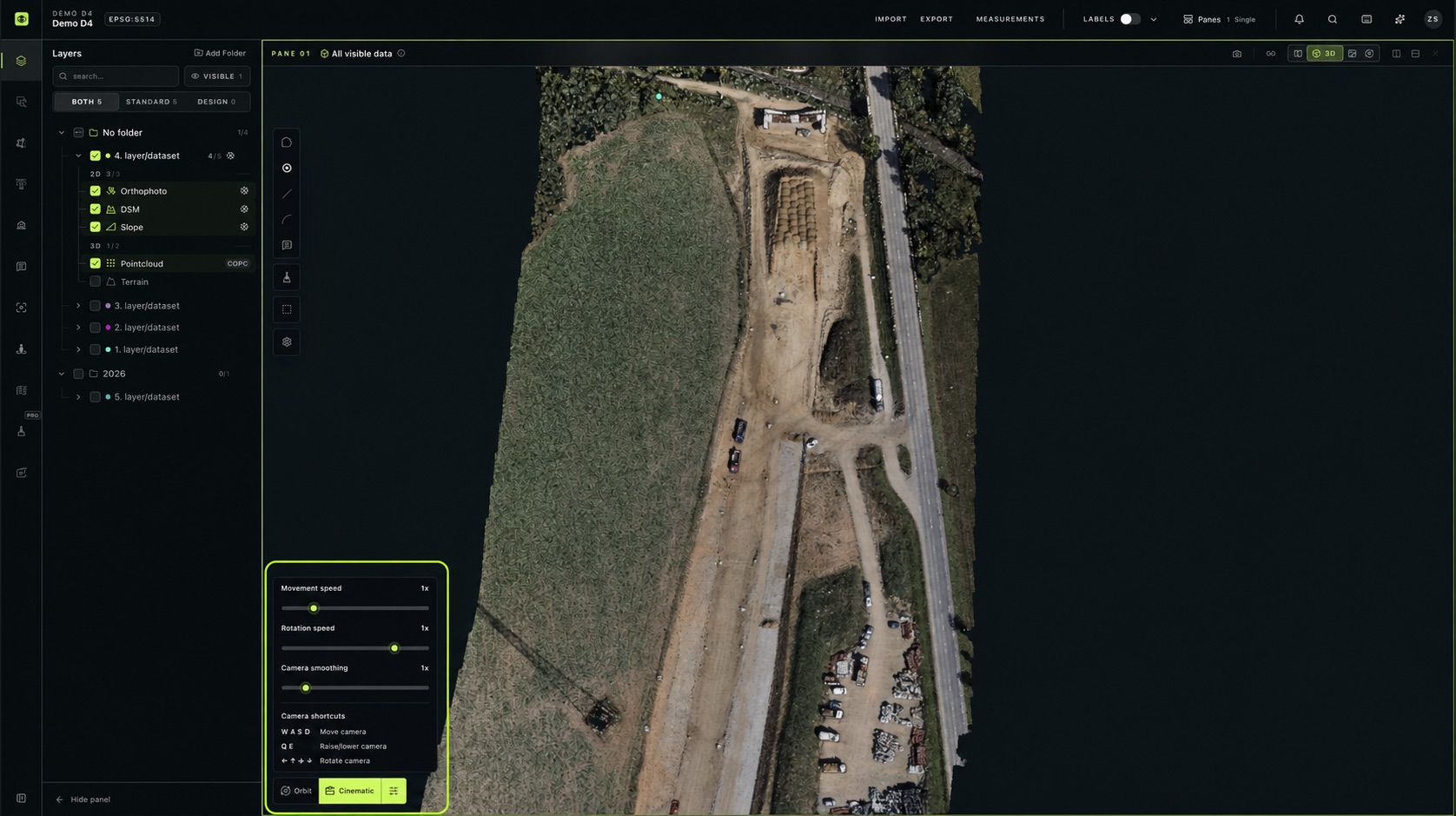
Finding Your Way Around The Workspace
When you open an object in AVAG, you enter the workspace for viewing your data, taking measurements, and comparing surveys.
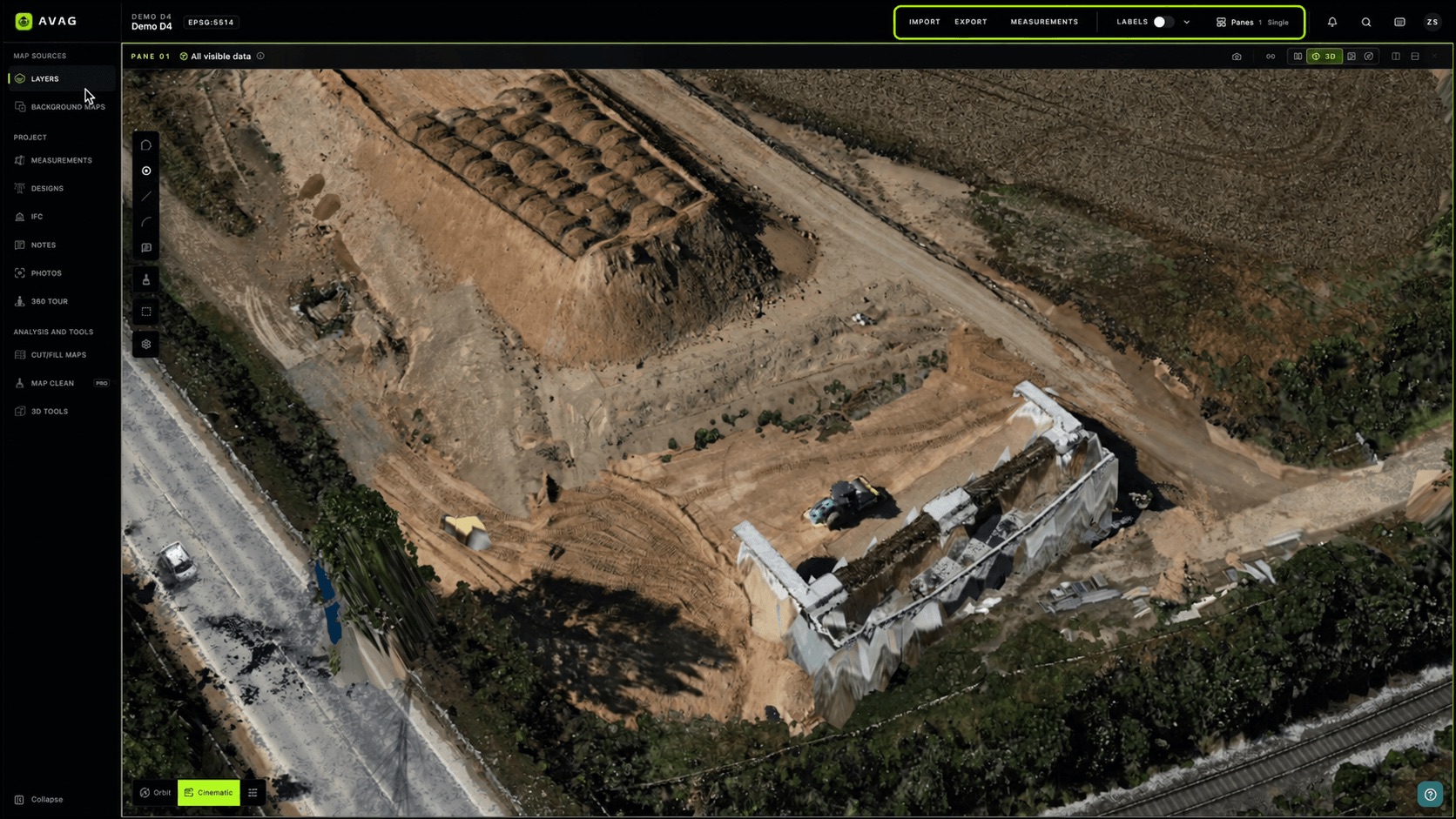
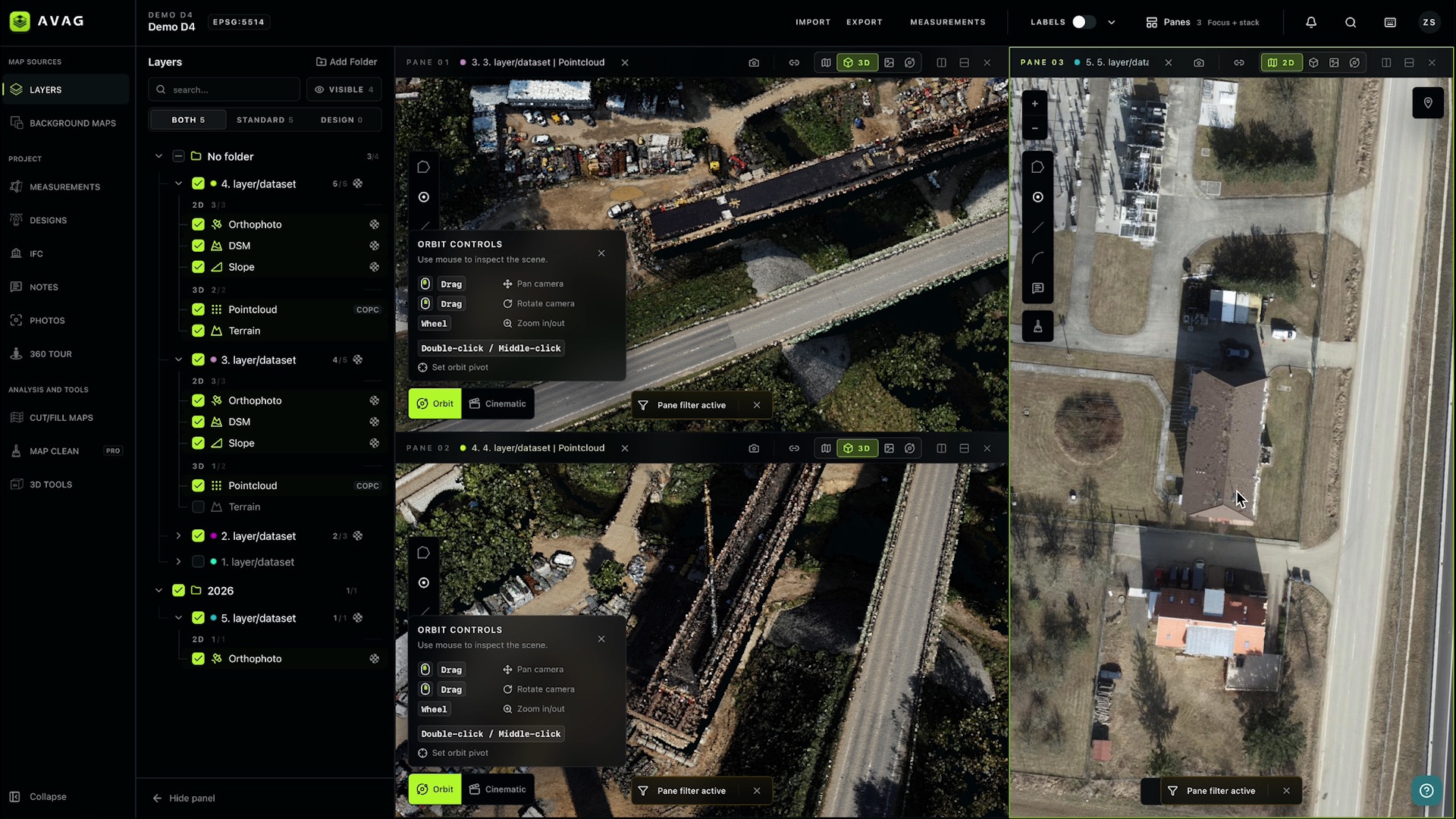
The workspace has four main areas: the top bar, the left sidebar, a panel for the selected tool, and the viewing panes.
The top bar
Section titled “The top bar”The top-left corner identifies the current project and object and displays the coordinate system.
Across the top, you’ll find:
- Import – Bring data into the workspace.
- Export – Access export options.
- Measurements – Access measurement options.
- Labels – Show or hide labels.
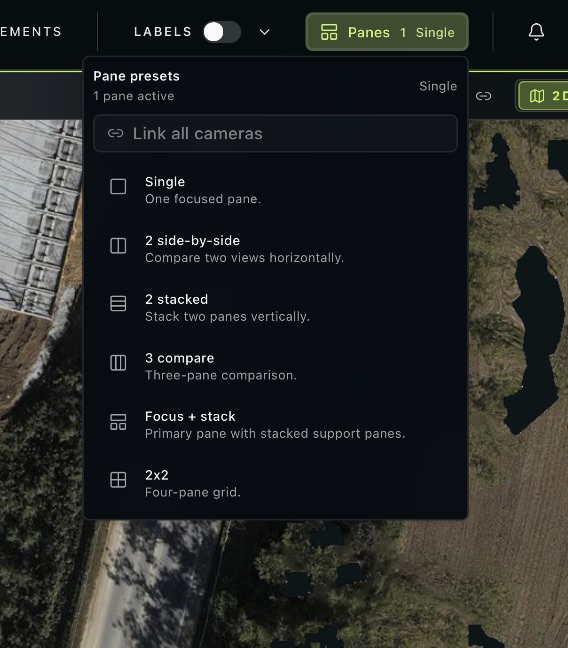
- Panes – Choose how your viewing area is arranged.
The left sidebar
Section titled “The left sidebar”The sidebar organizes the workspace into three sections.
Map sources
Section titled “Map sources”- Layers – Find your datasets and choose which outputs to display.
- Background maps – Access background maps and WMS services.
Project
Section titled “Project”- Measurements – Access your measurements.
- Designs – Access your drawings and designs.
- Notes – Access your notes.
- Photos – View your photos.
- 360 Tour – Explore panoramic tours.
Analysis and tools
Section titled “Analysis and tools”- Cut/Fill Maps – Access cut-and-fill comparisons.
- Map Clean – Access map-cleaning tools.
- 3D Tools – Work with limit boxes, camera views, and point cloud classifications.
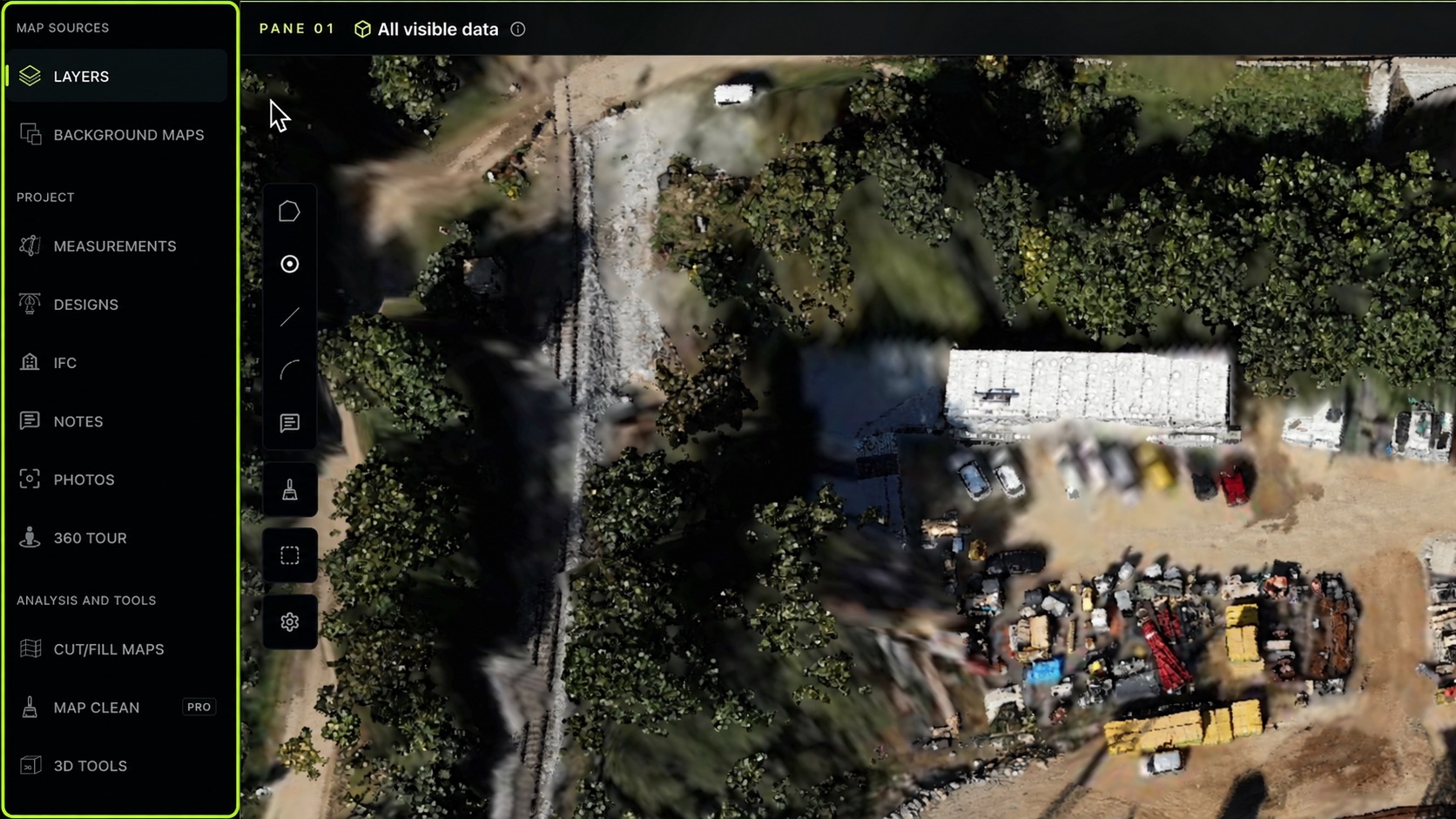
Click an item to open its panel beside the sidebar.
Working with panels
Section titled “Working with panels”The panel shows the contents and controls for the sidebar item you selected. For example, Layers lists your datasets, while 3D Tools contains limit boxes, camera views, and classifications.
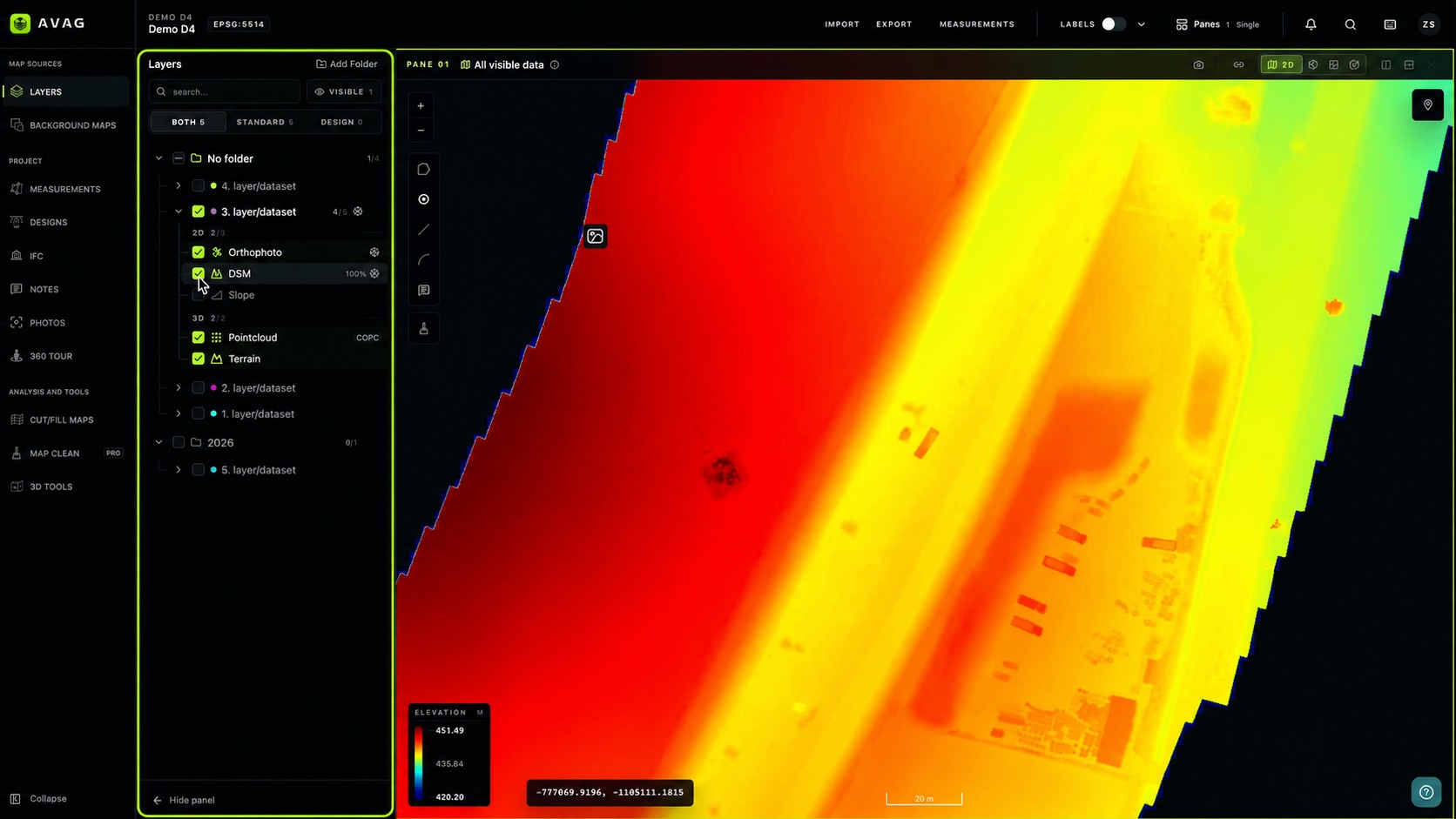
Click Hide panel at the bottom to give your viewing area more space. Click Collapse to reduce the sidebar.
Working with panes
Section titled “Working with panes”Panes are the individual views in your workspace. You can display different datasets and view modes alongside one another—for example, a 2D survey map next to a 3D point cloud.
Use Panes in the top bar to arrange your workspace. There is no fixed limit on the number of panes.
Each pane has its own header with its name, displayed content, and viewing controls. You can drag and drop a layer from the Layers panel into a pane to display it there.
Moving around in 3D
Section titled “Moving around in 3D”When a pane is in 3D mode, the camera controls appear at its bottom-left corner.
- Orbit – Inspect the scene by rotating around a chosen point.
- Cinematic – Move through the scene using keyboard controls.
In Cinematic mode, use W, A, S, D to move, Q, E to raise or lower the camera, and the arrow keys to rotate it. The settings beside Cinematic let you adjust movement speed, rotation speed, and camera smoothing.
For more detail on displaying and comparing datasets, continue to Viewing data & the layer system.