
Viewing data & the layer system
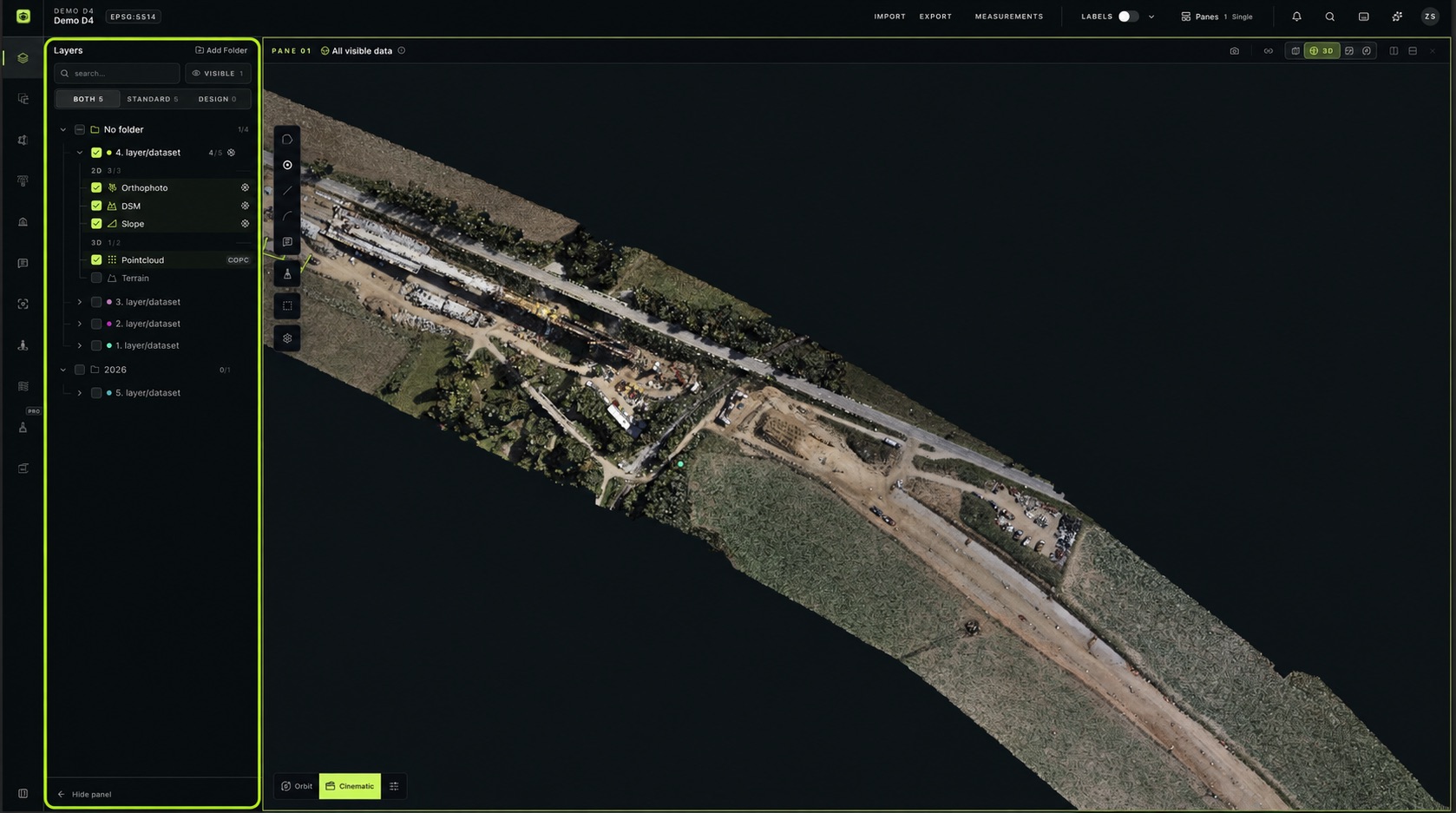
The Layers panel lets you find, organize, and display datasets associated with the current object. Use it to compare surveys, explore different outputs, and view design surfaces alongside measured data.
See Finding your way around the workspace for an introduction to sidebar panels and viewing panes.
Find and organize layers
Section titled “Find and organize layers”Click Layers under Map sources in the sidebar. Each dataset has a name and color indicator. Its flight date and ID help distinguish surveys.
Search by name and use the filters:
- Both: standard datasets and design surfaces.
- Standard: standard datasets.
- Design: imported design surfaces.
The Visible counter shows how many layers are enabled.
Click Add Folder to organize layers. Layers without an assigned folder appear under No folder. The Layers panel supports nested folders. Click a folder icon to toggle its visibility.
Expand a dataset to see outputs grouped under 2D and 3D. Use the output checkboxes to show or hide them.
Dataset folders in Layers and measurement folders in Measurements organize different things. For measurement visibility and editing, see Drawing tools.
Understand dataset outputs
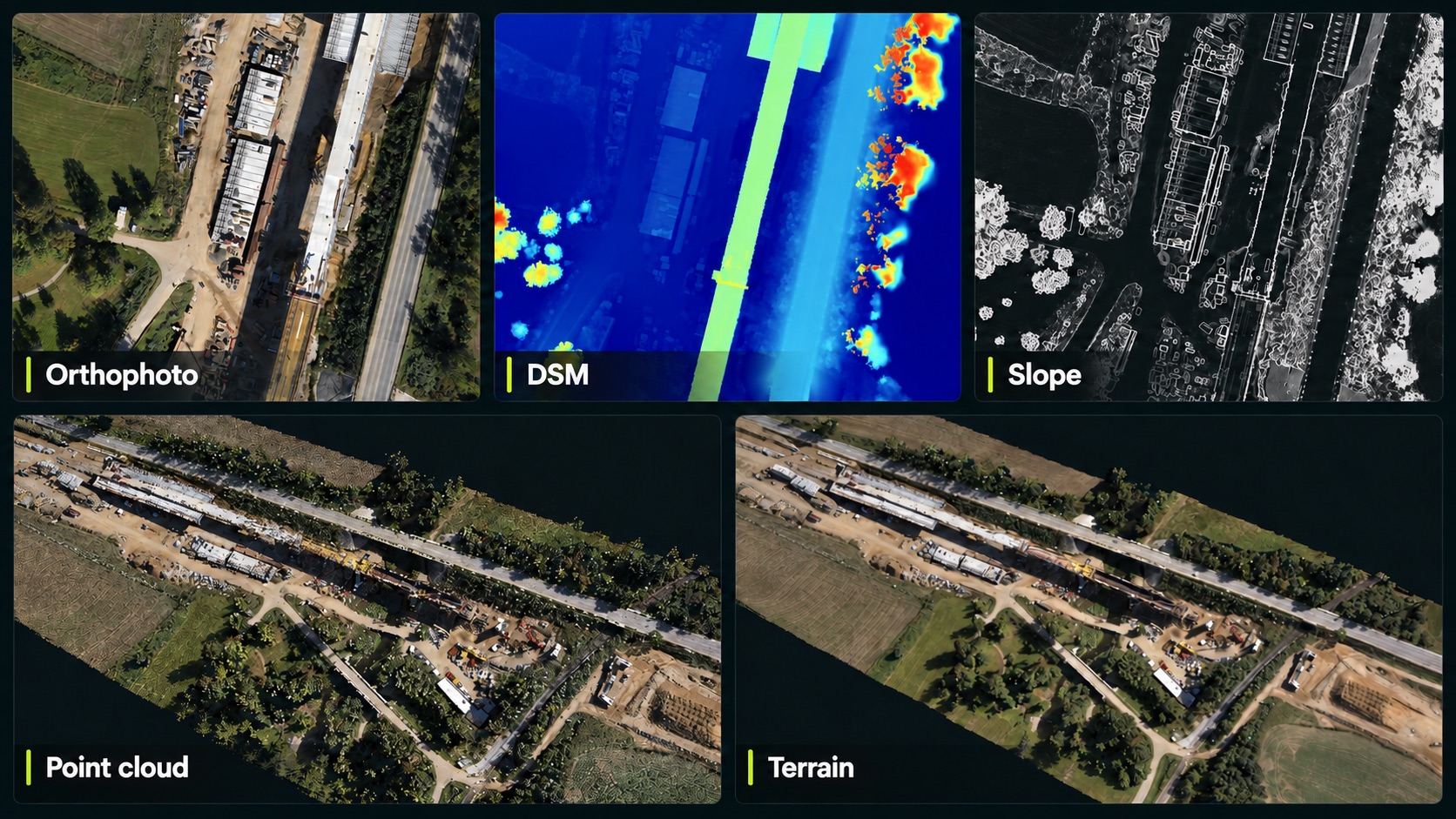
Section titled “Understand dataset outputs”Available outputs depend on the uploaded data and processing.
| Output | Purpose |
|---|---|
| Orthophoto | A georeferenced top-down aerial image, corrected for distortion, for inspection and measurement context. |
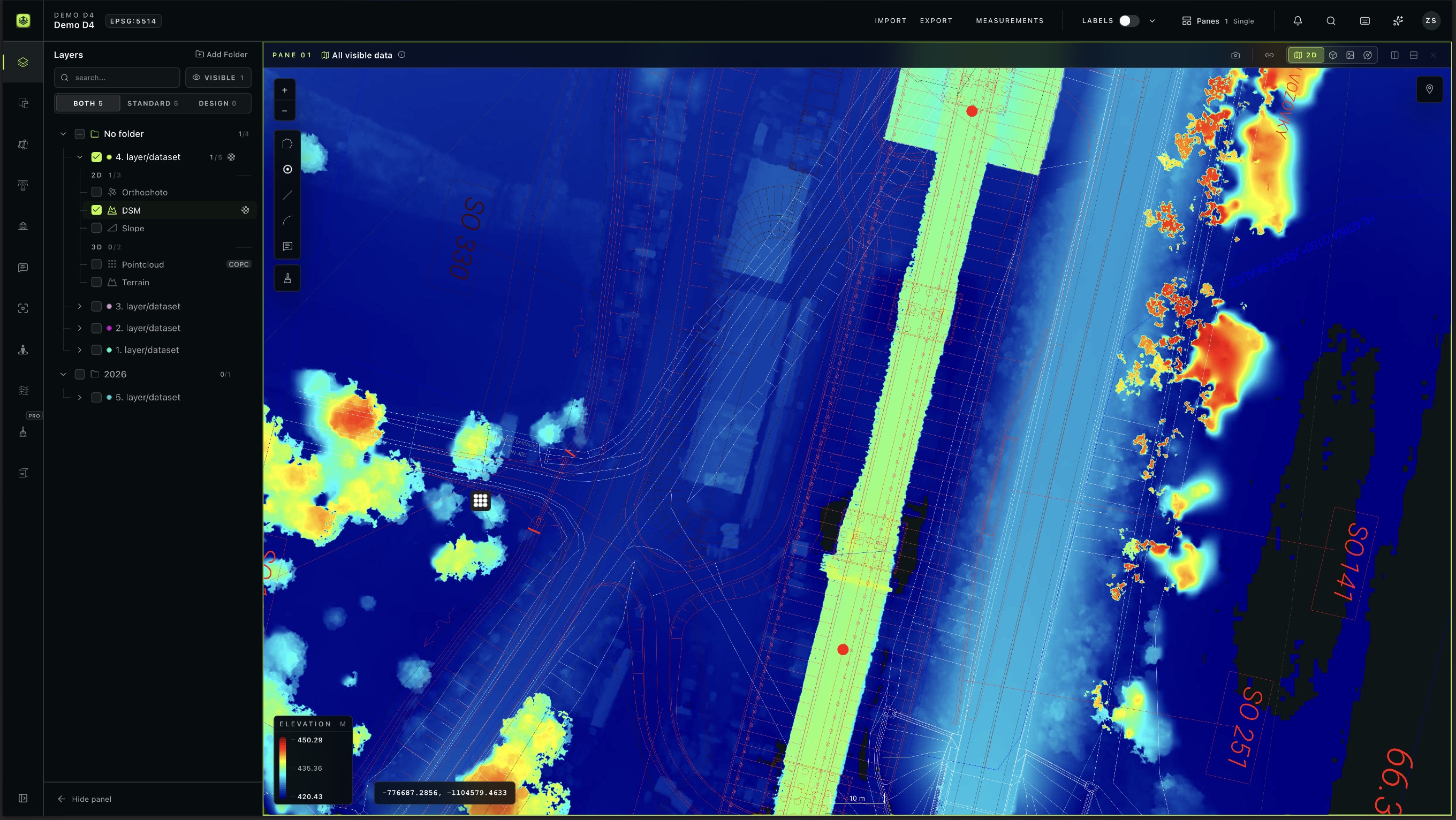
| DSM | An elevation model for volume calculations, profiles, and surface comparisons. Its color legend shows elevation values. |
| Slope | A DSM-derived gradient view for inspecting steep areas and surface variation. |
| Point cloud | Three-dimensional points representing the surveyed site. Explore them in 3D. |
| Terrain (2.5D) | An elevation surface with one height for each horizontal position. Supports surface inspection and contour lines. |
Terrain appears three-dimensional but represents a single surface. It cannot show multiple surfaces at the same XY position, such as a bridge and the ground beneath it, overhangs, or caves. Use suitable full 3D data, such as a point cloud or mesh, for those features.
See 3D display settings for Terrain coloring, elevation range, surface detail, and contours.
Switch between 2D and 3D
Section titled “Switch between 2D and 3D”Use the 2D/3D controls in the pane header. Each pane has its own mode.
For a 3D view of your project, make sure a suitable 3D output is visible, such as a point cloud, Terrain, or mesh. A visible orthophoto alone is not a substitute for enabling a 3D output.
Find your data in 3D
Section titled “Find your data in 3D”When a 3D pane has no saved camera view, AVAG frames visible data as it loads. Moving the camera stops this initial automatic framing.
To return to your data:
- Double-click a layer name to zoom to it. This works in 2D and 3D.
- On desktop, use Zoom to all data beside Orbit/Cinematic to frame the visible data.
Zoom to all data is disabled while the pane is synchronized with a panorama.
View design surfaces
Section titled “View design surfaces”Imported LandXML design surfaces appear as design layers. Use Design or Both to find them and their checkboxes to control visibility.
Adjust transparency
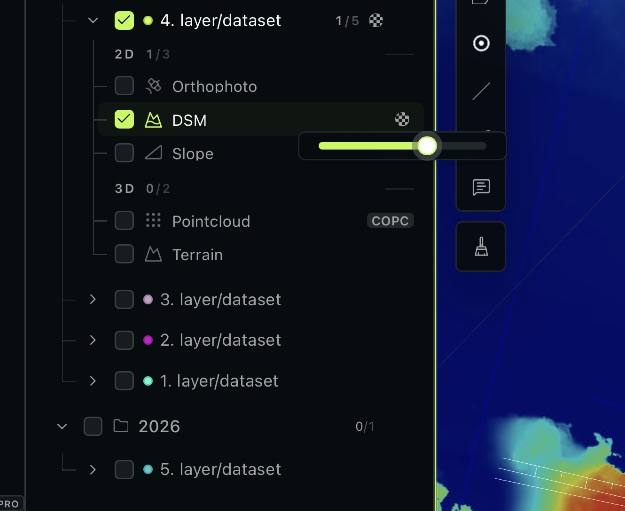
Section titled “Adjust transparency”Click the checkerboard icon beside an output to adjust transparency. For example, make a newer orthophoto partially transparent to compare it with an older survey underneath.
Adjust 3D display settings
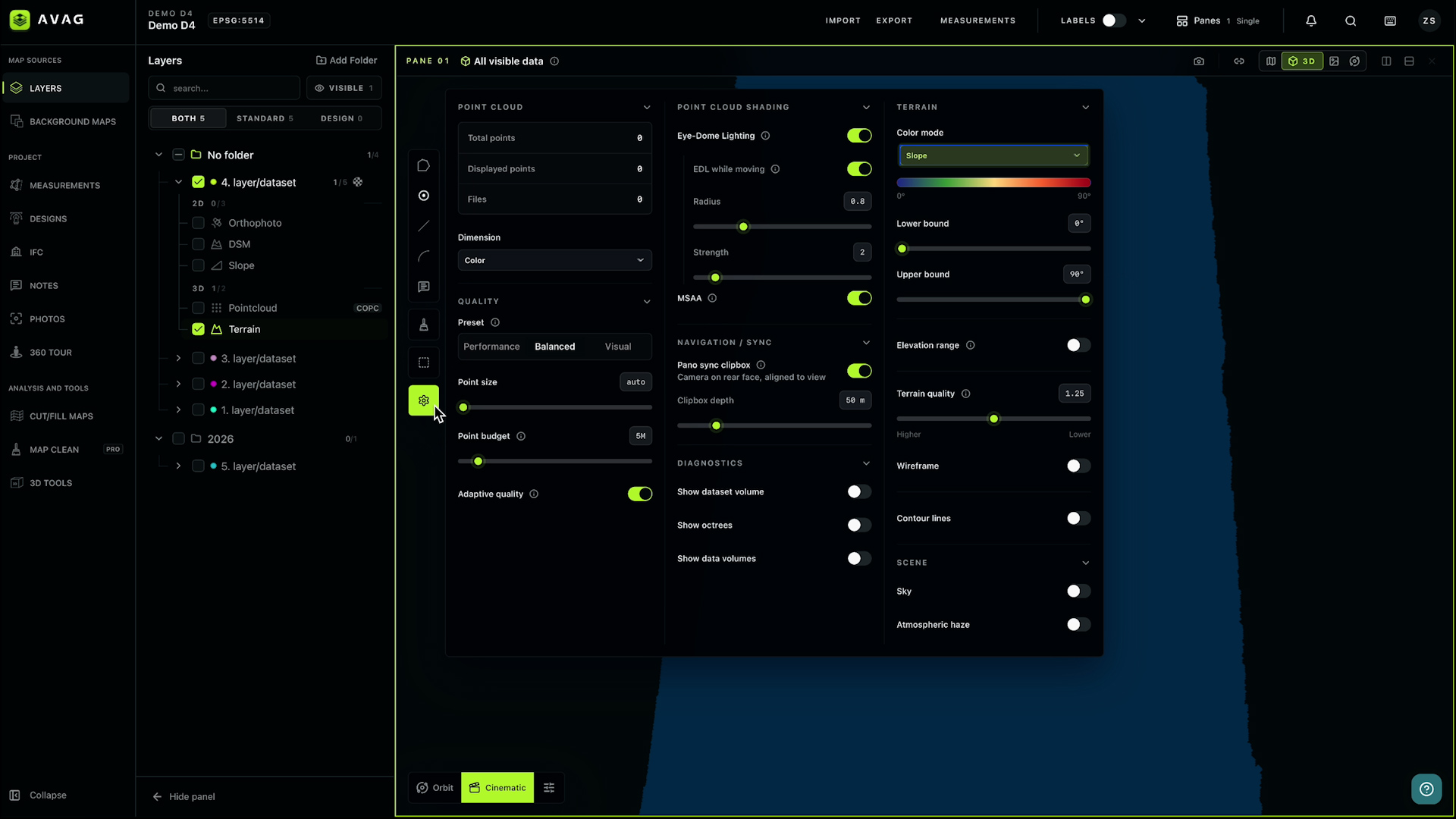
Section titled “Adjust 3D display settings”In a 3D pane, click the gear icon on its left toolbar to adjust point cloud coloring, quality, shading, Terrain display, and scene appearance.
Terrain controls include color modes, elevation clipping, surface quality, wireframe, and contours. Display changes do not modify the source files. See 3D display settings for details.
Use 3D tools
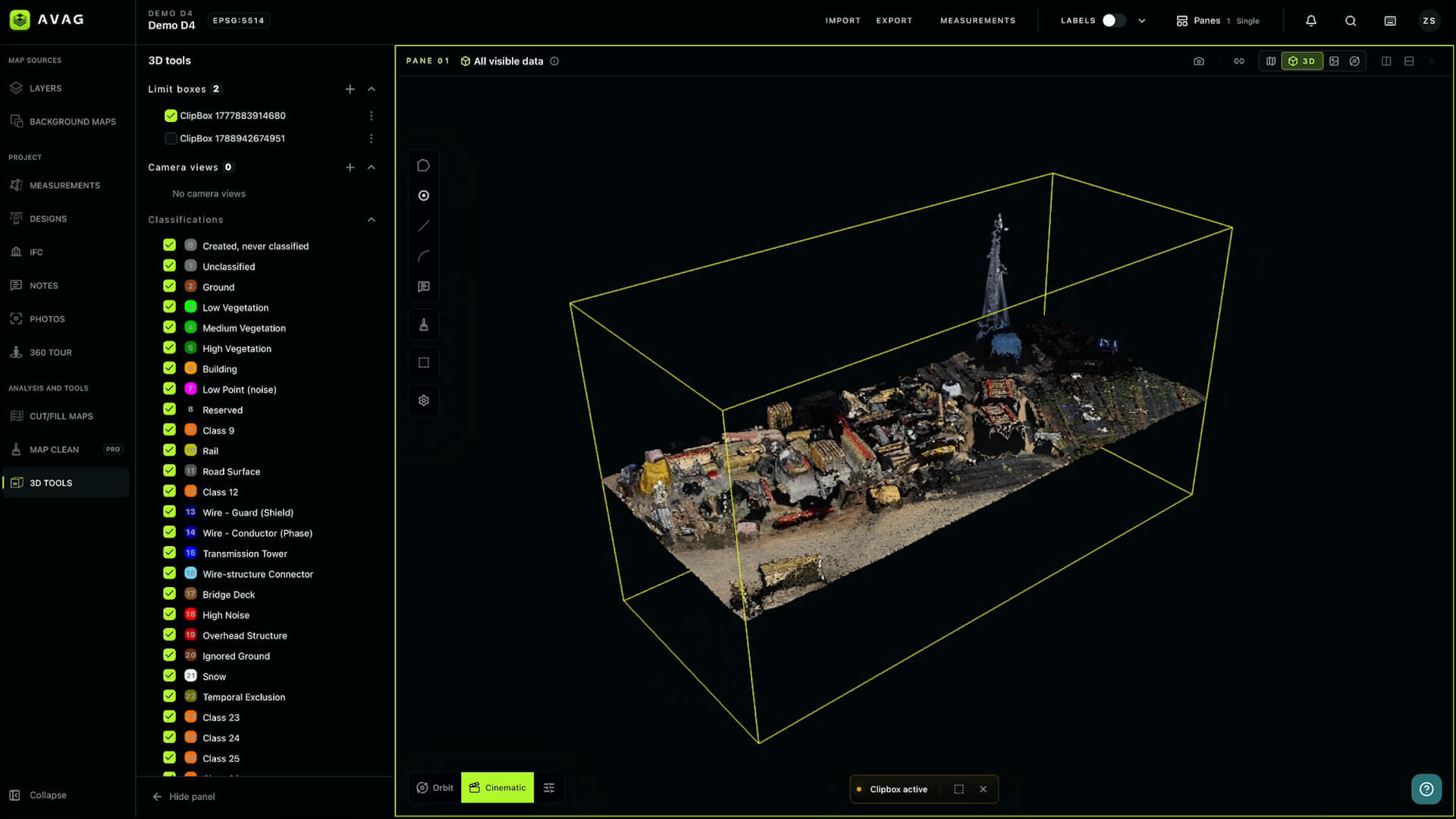
Section titled “Use 3D tools”Open 3D Tools under Analysis and tools.
- Limit boxes: Isolate an area by hiding data outside a box. Click + beside Limit boxes or use Place clip box in the pane toolbar. Boxes can be positioned and rotated. Use their checkboxes and three-dot menus to manage them.
- Camera views: Save and manage viewpoints. Click + beside Camera views to add one.
- Classifications: Show or hide point cloud categories. Available classes depend on the dataset.
Clipping the view does not export a cropped point cloud. Direct export of a clipped subset is not currently available. Contact support to discuss arranging a crop.
Compare datasets across panes
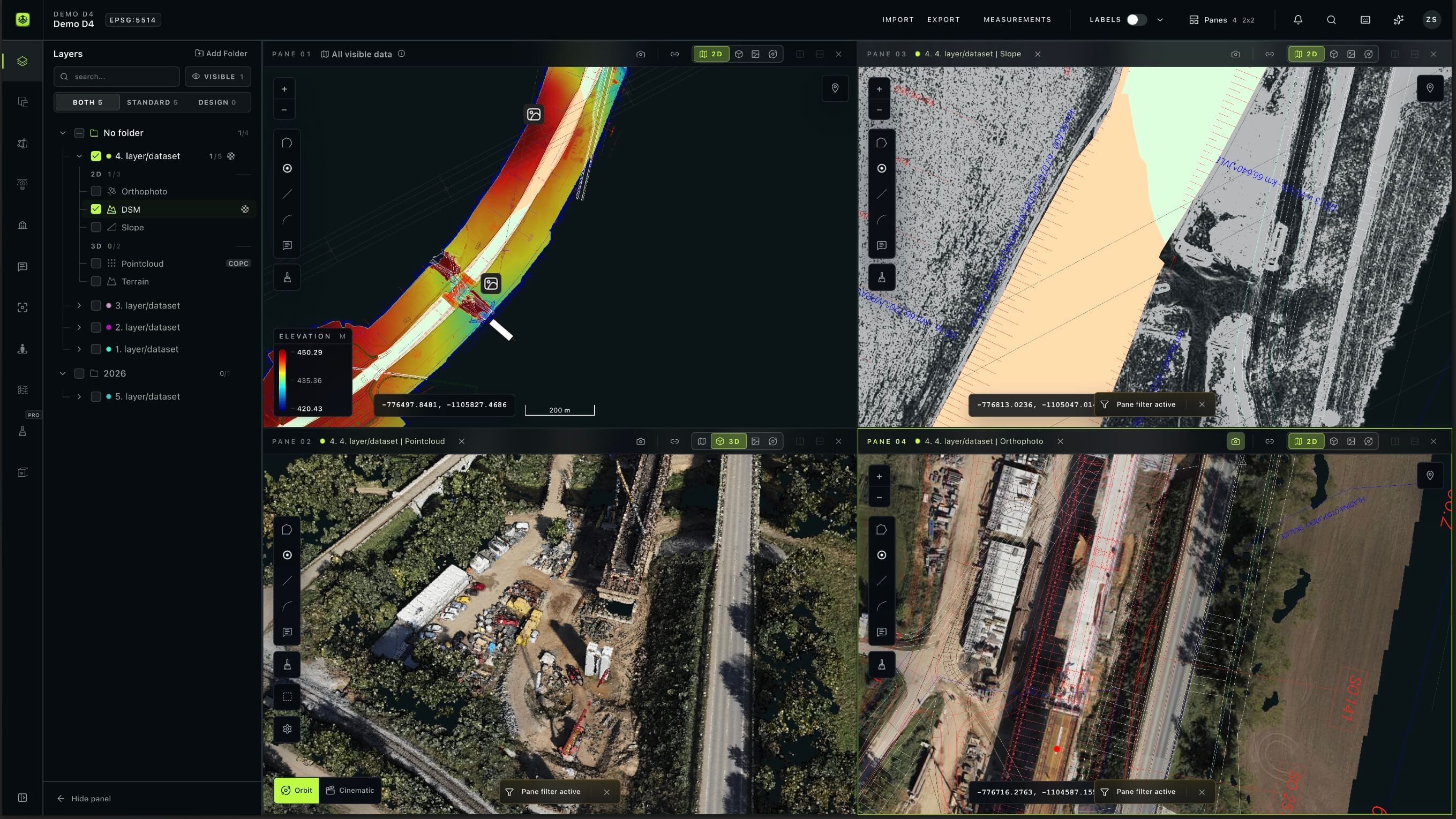
Section titled “Compare datasets across panes”Use Panes in the top bar to arrange separate views. Drag a layer from Layers into a pane and choose its mode in the pane header.
You can compare surveys from different dates, view 2D beside 3D, compare a LandXML design surface with a survey DSM, or open a 360° tour beside an aerial view.
Each pane has its own data and camera. Linked pane cameras let you coordinate views. There is no fixed four-pane limit; the keyboard shortcuts address the first four panes.
IFC models
Section titled “IFC models”General IFC uploads are coming to AVAG. No release date has been announced.
Frequently asked questions
Section titled “Frequently asked questions”Why is my 3D view empty?
Section titled “Why is my 3D view empty?”Check that the intended 3D output is switched on, allow it to load, and double-click its layer name to zoom to it. An empty view can mean the camera is looking away from the data.
If the data still does not appear, check for loading errors and contact support with the project and dataset details.