
Account Settings
Manage your personal profile and company details from one place. Click your name and avatar in the bottom-left corner of the sidebar, then select Account or Settings from the menu.
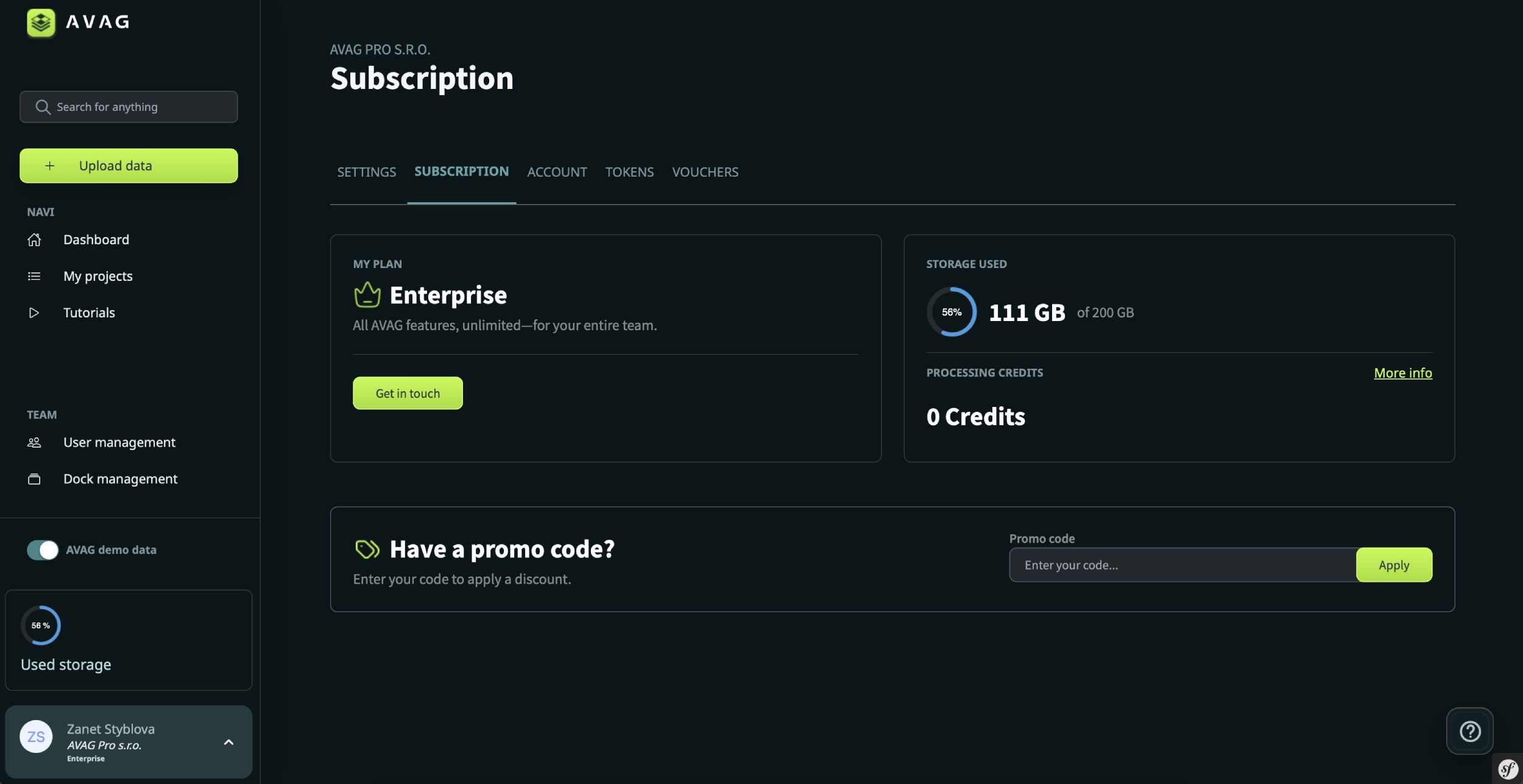
This area has four standard tabs: Settings, Subscription, Account, and Tokens. Partners also have access to the Vouchers tab.
Account: Personal details, language & password
Section titled “Account: Personal details, language & password”The Account tab contains your personal profile and preferences.
- Profile photo – Click Upload a profile photo to add a profile picture.
- Personal details – Update your Name and Phone number. Your account email address is displayed in the Email field and cannot be edited here.
- Password – Enter your new password in New password, then repeat it in Confirm password. Leave both fields empty to keep your current password.
- Language – Choose your preferred interface language. AVAG is available in English, German, Spanish, Polish, Czech, and Portuguese. Your selection takes effect after saving.
- Demo data – Select Show demo data in the dashboard to keep AVAG’s example datasets visible while you explore the platform.
- Email notifications – Use Receive email notifications to enable or disable email notifications.
Click Save to apply your changes.
Settings: Company information & preferences
Section titled “Settings: Company information & preferences”The Settings tab opens the General settings page, where you manage your organization’s details and preferences. Company information is used in exported reports and invoices.
- Company registration number – Enter your company registration number. Use Find in Index to look up your company’s details automatically.
- VAT number – Enter your company’s VAT number.
- Name / Company name – Enter your name or your company’s name.
- Division / Department – Optionally specify a department or business unit.
- Street, City, Post code / ZIP, Country – Enter your registered business address.
- Currency – Select your preferred billing currency.
- WMS Region – Select your region to access country-specific WMS map services, such as ČÚZK and LPIS for Czech users.
- Coordinate system – Select your default coordinate system. You can update this setting at any time.
- Contact person – Enter the name of your organization’s primary contact.
- E-mail – Enter the contact person’s email address. You can edit this address here; it is separate from the read-only email address in your personal Account tab.
- Telephone – Enter the contact person’s phone number.
Click Save to apply your changes.
Tip: Keeping your company details up to date ensures they appear correctly on volume reports and PDF exports.
Tokens: API access
Section titled “Tokens: API access”The Tokens tab lets you generate API keys for integrating AVAG with external tools or workflows. Click + New token, give it a name, set an expiry date, and save. Your token will be generated automatically — treat it like a password and don’t share it publicly.
This section is mainly relevant for developers and technical integrations. If you’re just getting started, you can safely skip it for now.