
Uploading Your First Dataset
AVAG organizes your data into three levels: Projects contain Objects, and Objects contain Layers. Each layer represents a single dataset, such as one drone flight or an imported point cloud.
When you upload a dataset, AVAG creates a new layer inside the object you select. You can also create a new object during setup.
To begin, click Upload data in the left sidebar. The Upload new dataset dialog will open.
Step 1: Choose what you’re uploading
Section titled “Step 1: Choose what you’re uploading”Use the What are you uploading? dropdown to select one of four options:
- Photos – Upload raw drone photos for processing. AVAG generates an orthophoto, DSM, slope model, and point cloud.
- Processed outputs (DSM, TIFF, LAS, etc.) – Import data already processed in other software. You can upload a combination of elevation models, orthophotos, point clouds, and meshes.
- 360° tour – Upload pre-stitched panoramic images with their metadata for ground-level inspection tours linked to the map.
- LandXML design – Import a 3D design surface to compare construction designs against survey data.

Step 2: Enter the dataset details
Section titled “Step 2: Enter the dataset details”Complete the relevant fields:
- Dataset name – Give your dataset a recognizable name, such as “Site A – North section – April 2026.”
- Capture date – Enter the date the data was captured. This defaults to today’s date.
- Object – Select an existing object or choose Create new.
- WMS Region – Select your country or region to enable the relevant background map services.
- Coordinate system – Select the coordinate system used by your data. For Photos, this field appears when you uncheck Free automated processing without GCPs.
- Device (360° tour only) – Select the camera used to capture your panoramic images.
For Photos, leave Free automated processing without GCPs checked to use free automated processing. AVAG uses your photos’ GPS data to set the coordinate system.
If you’re using Ground Control Points (GCPs), uncheck this option and select the appropriate Coordinate system. Processing with GCPs requires Expert credits purchased in advance.
Click Create dataset to continue to the file-upload screen.

Step 3: Upload your files
Section titled “Step 3: Upload your files”The files you need depend on the upload type.
Photos – Drag and drop your drone photos into the upload area. If you selected processing with GCPs, add your GCP file (.txt) alongside the photos.
Processed outputs (DSM, TIFF, LAS, etc.) – Upload one or more outputs into their respective drop zones:
- DSM: .tif or .tiff
- Orthophoto: .tif or .tiff
- Point cloud: .las or .laz
- Mesh: .zip containing .obj, .mtl, and .jpg files
360° tour – Upload your panoramic photos (.jpg) and a metadata file (.txt or .csv) containing the GPS position, roll, pitch, and heading for each image. The number of photos must match the number of image entries in the metadata file.
LandXML design – Upload a single .xml file. The surface must be triangulated, saved in LandXML format, and use the correct coordinate reference system matching your project.
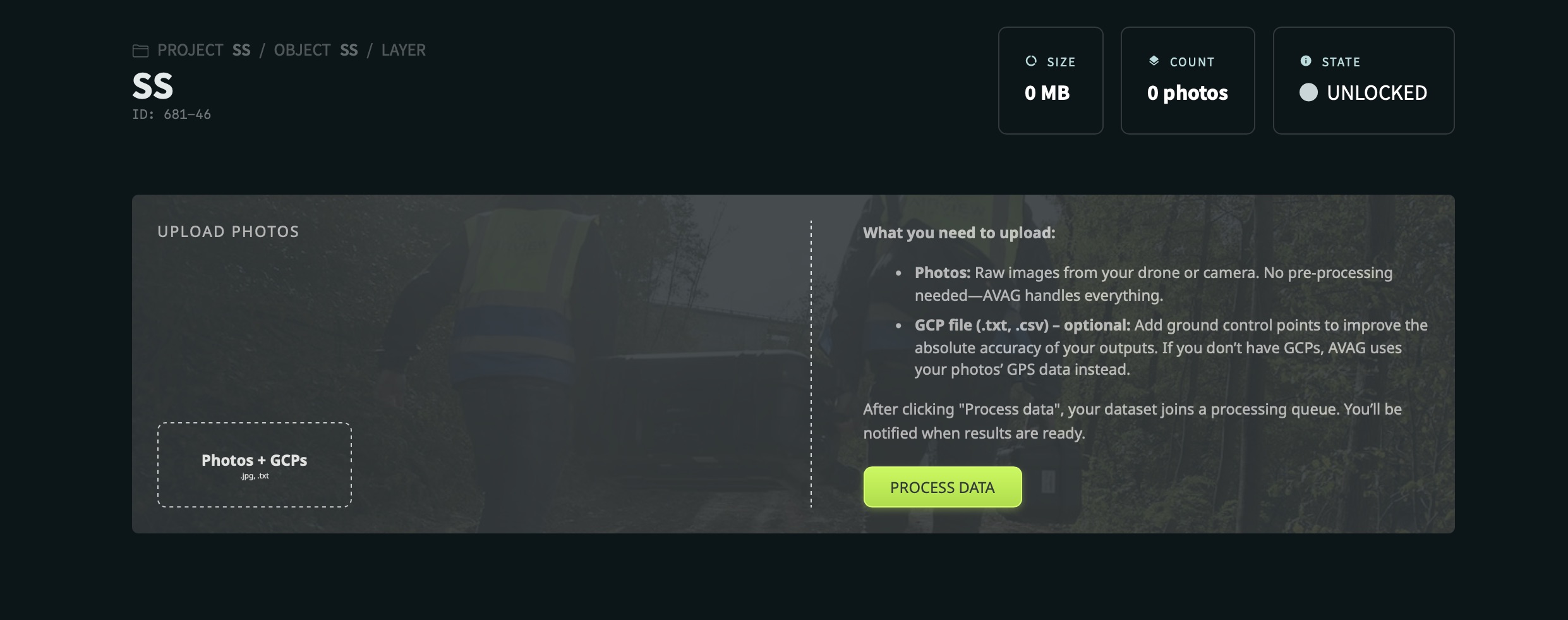
Step 4: Start processing
Section titled “Step 4: Start processing”Once your files have uploaded, click Process Data to submit the dataset to the processing queue.
Processing time depends on the dataset. To give you an example, a typical photogrammetric dataset of 250 photos takes around 35 minutes from upload to results.