
3D Display Settings
Use the 3D display settings to adjust visual detail, navigation performance, point cloud shading, and the appearance of your scene.
Switch a pane to 3D, then click the gear icon on its left toolbar. Click it again to close the settings.
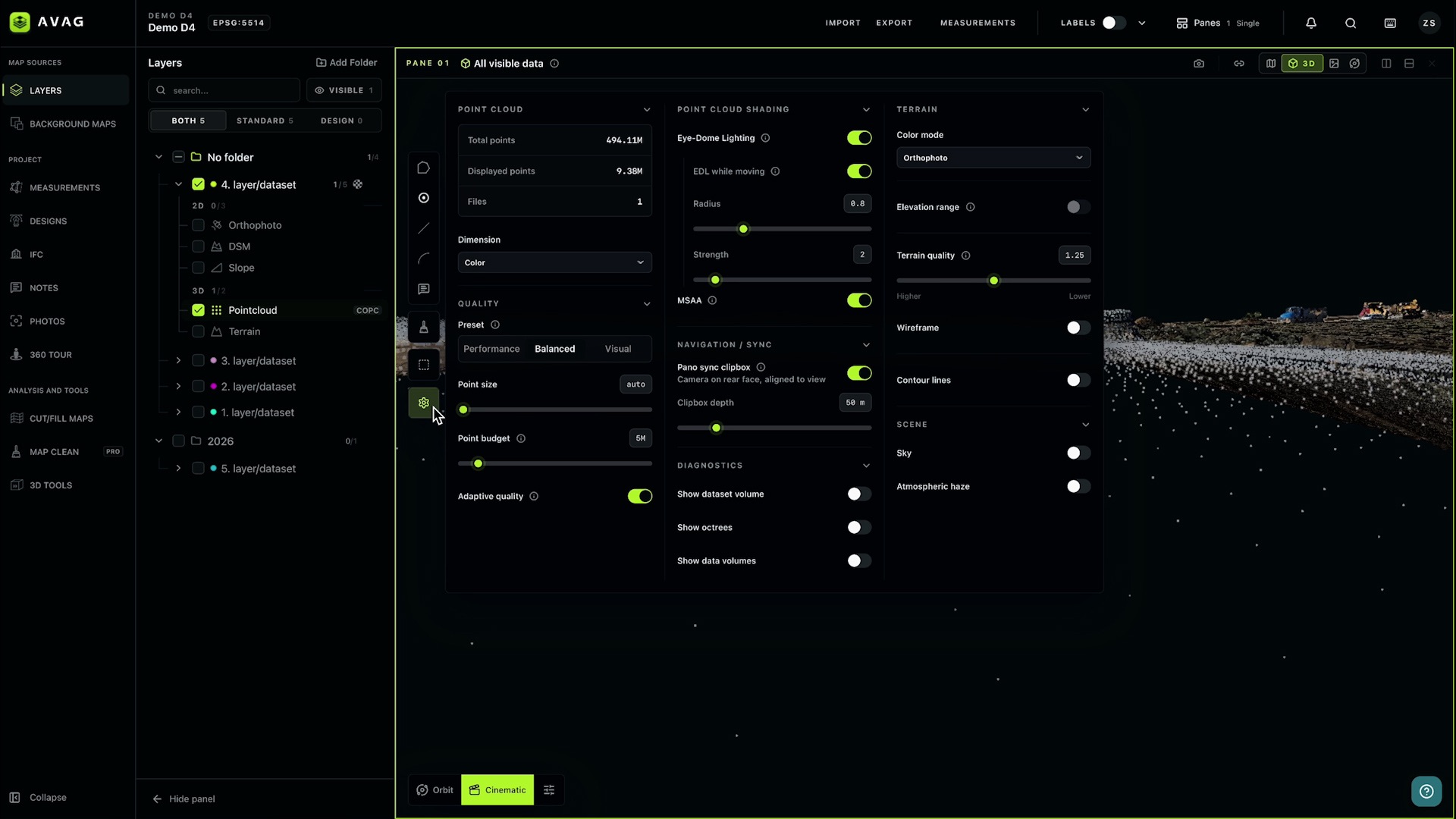
Changes appear immediately—there is no Apply button. These settings affect how data is displayed; they do not modify your source files.
Click an information icon beside a setting for additional guidance. Scroll vertically if the panel does not fit on your screen.
Point cloud
Section titled “Point cloud”This section shows point cloud statistics and lets you choose how points are colored.
- Total points – The total number of points in the point clouds tracked by the viewer, rather than the number currently visible.
- Displayed points – The number of points currently being rendered. This changes with your viewpoint, available data, and quality settings.
- Files – The number of point clouds tracked by the viewer, not the total number of project files.
- Dimension – The attribute used to color the points. Color uses the point cloud’s color attribute. Other choices depend on the attributes available in the loaded data.
K means thousands of points; M means millions. If a selected attribute is unavailable in one of the point clouds, the viewer uses an available fallback attribute.
Quality
Section titled “Quality”Quality settings balance visual detail with smooth navigation.
Presets
Section titled “Presets”Choose a preset to adjust several settings together:
|
Preset |
Best for |
Point budget |
Adaptive quality |
|
Performance |
Reducing demands on your device | 2 million | On |
|
Balanced |
Everyday viewing; the default preset | 5 million | On |
|
Visual |
Keeping more detail while navigating | 8 million | Off |
Presets also adjust point cloud shading and anti-aliasing. Performance disables EDL and MSAA; Balanced and Visual enable them.
If you change individual settings so they no longer match a preset, the panel indicates a custom configuration. Selecting another preset replaces those settings. Presets do not change point size or terrain settings.
Individual controls
Section titled “Individual controls”Point size – Use auto to let the viewer control point size, or choose a fixed size from 1–10. Larger points can fill visible gaps but may obscure fine details.
Point budget – Set the maximum number of rendered points, shared across visible point clouds, from 1–50 million. Higher values allow more detail but place greater demands on your graphics hardware. The actual displayed count may be lower.
Adaptive quality – Temporarily reduce point cloud detail while the camera moves, then restore the configured point budget when movement stops.
Point cloud shading
Section titled “Point cloud shading”Use shading to make shapes, edges, and depth easier to distinguish.
- Eye-Dome Lighting – Highlight depth differences between points. This improves the readability of surfaces but requires additional processing.
- EDL while moving – Keep Eye-Dome Lighting active during camera movement. Turning it off can improve responsiveness on less powerful devices.
- Radius – Adjust the area used to calculate the shading effect, from 0–3.
- Strength – Adjust shading contrast, from 0–20.
- MSAA – Smooth jagged edges using anti-aliasing. This uses additional graphics memory and processing power.
The movement, radius, and strength controls appear when Eye-Dome Lighting is enabled.
Navigation / Sync
Section titled “Navigation / Sync”These settings control how 3D content is clipped when synchronized with a panorama.
Pano sync clipbox – Use a temporary clipping box that follows the camera during panorama synchronization. The camera sits on the box’s rear face, and the box aligns with the viewing direction.
This helps isolate nearby 3D content corresponding to the panoramic view. The toggle does not activate panorama synchronization itself.
Clipbox depth – Set how far the box extends in front of the camera, from 5–250 m. A smaller depth shows nearby content; a larger depth includes more distant content.
The clipbox is enabled by default with a depth of 50 m, but it only takes effect when panorama synchronization is active.
Diagnostics
Section titled “Diagnostics”Diagnostic controls display spatial boundaries to help inspect how point clouds are organized and loaded. They are off by default.
- Show dataset volume – Display the bounding box around the entire point cloud. Here, “volume” means its spatial boundary, not a calculated material volume.
- Show octrees – Display the boxes used to divide the point cloud into smaller sections for loading and rendering.
- Color by LOD depth – Color these boxes by their level of detail. This option appears when octrees are shown.
- Show data volumes – Display the boundaries of the actual data within those sections.
These options are mainly useful for technical inspection and troubleshooting.
Terrain
Section titled “Terrain”Terrain settings control surface coloring, elevation clipping, detail, and contour lines. Elevation-based features require terrain elevation data.
Color mode
Section titled “Color mode”Choose how the terrain is displayed:
- Orthophoto – Display the available orthophoto over the terrain.
- Elevation – Color the terrain by height.
- Slope – Color the terrain by steepness.
- Aspect – Color the terrain by the direction each slope faces.
Elevation, slope, and aspect modes include a color legend and lower and upper limits for the color scale.
Changing these limits affects coloring only. To hide terrain outside an elevation band, use Elevation range.
Elevation range
Section titled “Elevation range”Enable Elevation range to hide terrain outside a selected height interval. Set the minimum and maximum elevations to define the visible band.
The available range depends on the terrain’s elevation data. If that range is unavailable, elevation clipping cannot be enabled. Turn the toggle off to show the full elevation range again.
Terrain quality and wireframe
Section titled “Terrain quality and wireframe”Terrain quality – Adjust the level of surface detail. Move toward Higher for more detail or Lower to reduce rendering demands.
The numerical range is 0.5–2.0, with a default of 1.25. Lower numbers mean higher quality.
Wireframe – Show the edges of the terrain mesh to inspect its structure.
Contour lines
Section titled “Contour lines”Enable Contour lines to display lines of equal elevation on the terrain. You can adjust:
- Major interval – The elevation spacing between major contours; the default is 10 m.
- Minor interval – The spacing between minor contours; the default is 5 m.
- Transparency – The line visibility control: 0 makes lines invisible and 1 makes them fully opaque.
- Thickness – The displayed line thickness.
- Color – The contour color; the default is black.
Smaller intervals produce denser contour lines. Set the minor interval below the major interval for a clear hierarchy.
Sky – Show a sky background in the 3D scene.
Atmospheric haze – Soften distant content to emphasize depth. The effect weakens as you tilt the camera downward and disappears when looking almost vertically at the terrain.
Choosing settings for your task
Section titled “Choosing settings for your task”-
Navigation feels slow: Choose Performance, reduce the point budget, or enable adaptive quality.
-
Point cloud shapes are difficult to read: Enable Eye-Dome Lighting and adjust its strength and radius.
-
You want to compare elevations or slopes: Choose the corresponding terrain color mode and adjust the color-scale limits.
-
You need to isolate a height band: Enable Elevation range and set its minimum and maximum.
• • Distant content is missing during panorama synchronization: Check whether the clipbox is enabled and increase its depth if needed.